> ## Documentation Index
> Fetch the complete documentation index at: https://graphite-58cc94ce.mintlify.site/docs/llms.txt
> Use this file to discover all available pages before exploring further.
# Linear
> Learn how to integrate Graphite with Linear to view, link, and create issues associated with pull requests.
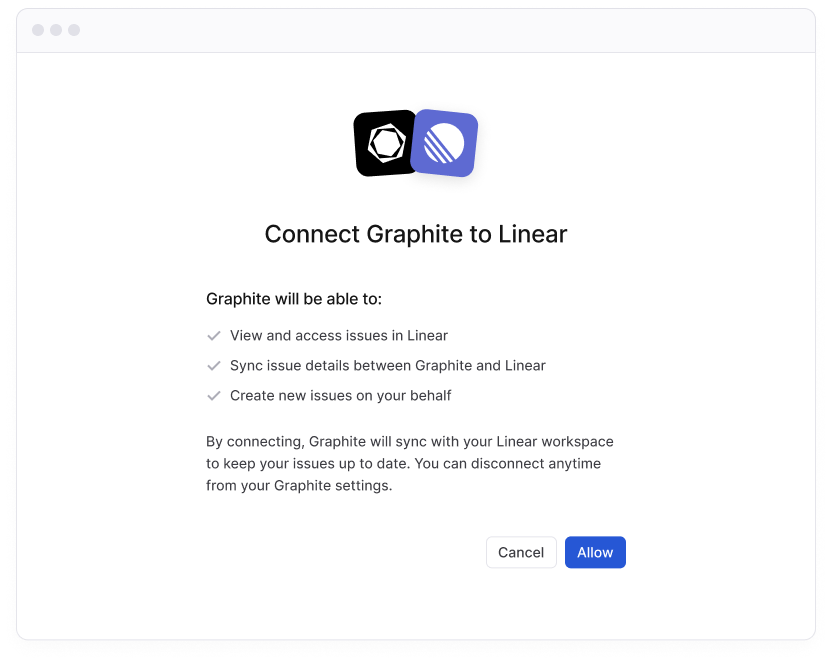 With Graphite's Linear integration you can view, link, and create issues associated with pull requests right from the Graphite web app.
### Prerequisites
* A Linear account
* A Graphite Team or Enterprise plan
## Connect Linear
Connect your Linear account directly from the [*Connected accounts* settings page](https://app.graphite.com/settings/connected-accounts) on the Graphite app.
With Graphite's Linear integration you can view, link, and create issues associated with pull requests right from the Graphite web app.
### Prerequisites
* A Linear account
* A Graphite Team or Enterprise plan
## Connect Linear
Connect your Linear account directly from the [*Connected accounts* settings page](https://app.graphite.com/settings/connected-accounts) on the Graphite app.
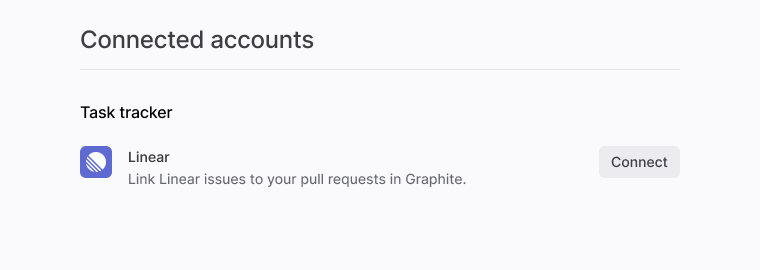 After clicking the `Connect` button you will be directed to Linear to finish the integration setup process.
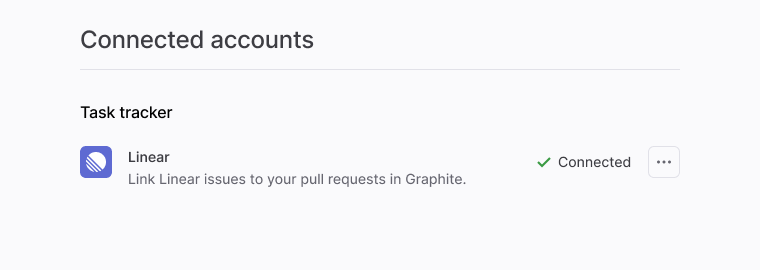 Once the integration is successfully configured, you should see confirmation on the **Connected accounts** settings page.
## Using the Linear integration on the PR page
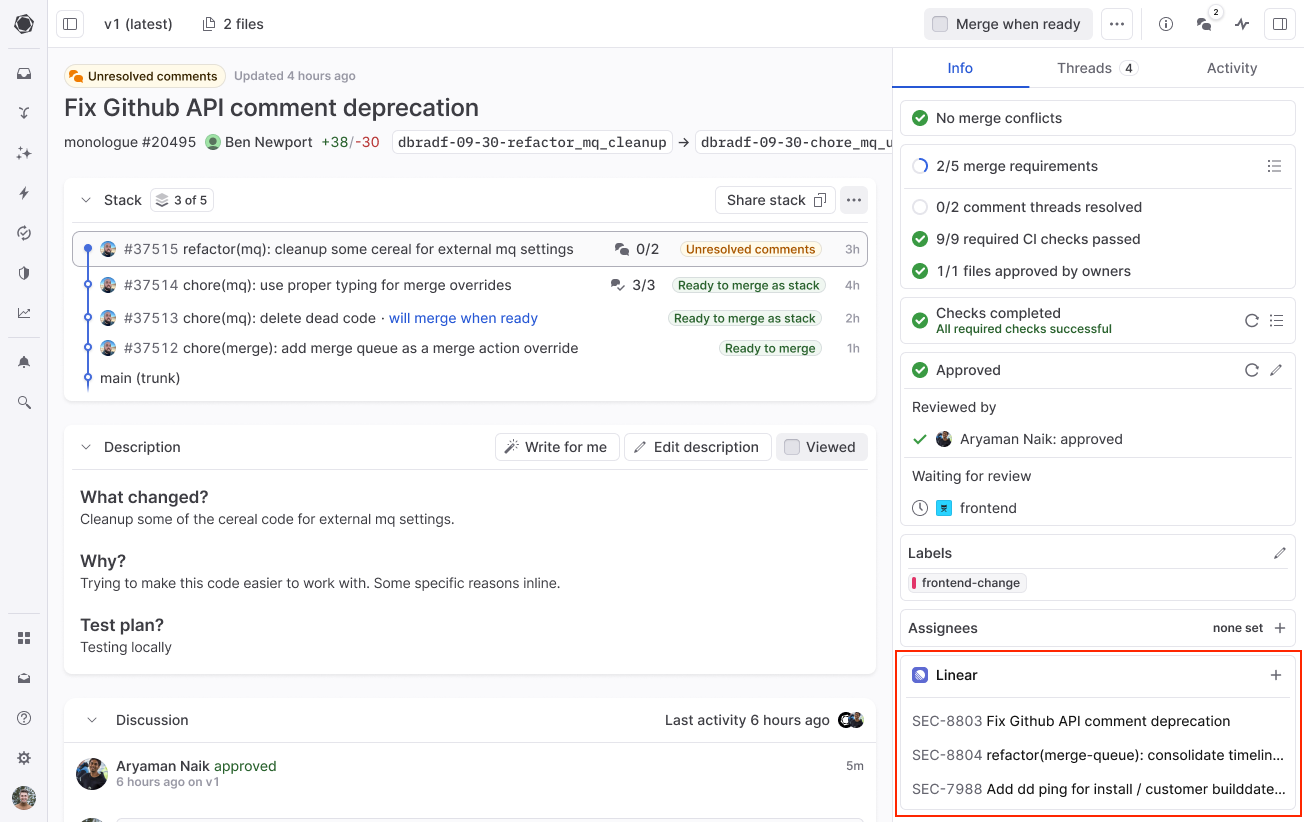
After you've installed the integration, you can will then be able to view any associated Linear issues in the sidebar of the **Pull Request** page.
Once the integration is successfully configured, you should see confirmation on the **Connected accounts** settings page.
## Using the Linear integration on the PR page
After you've installed the integration, you can will then be able to view any associated Linear issues in the sidebar of the **Pull Request** page.
 ### Linking an existing issue
To link a Linear issue to a pull request, click the **+** symbol located in the issue tracker sidebar component.
### Linking an existing issue
To link a Linear issue to a pull request, click the **+** symbol located in the issue tracker sidebar component.
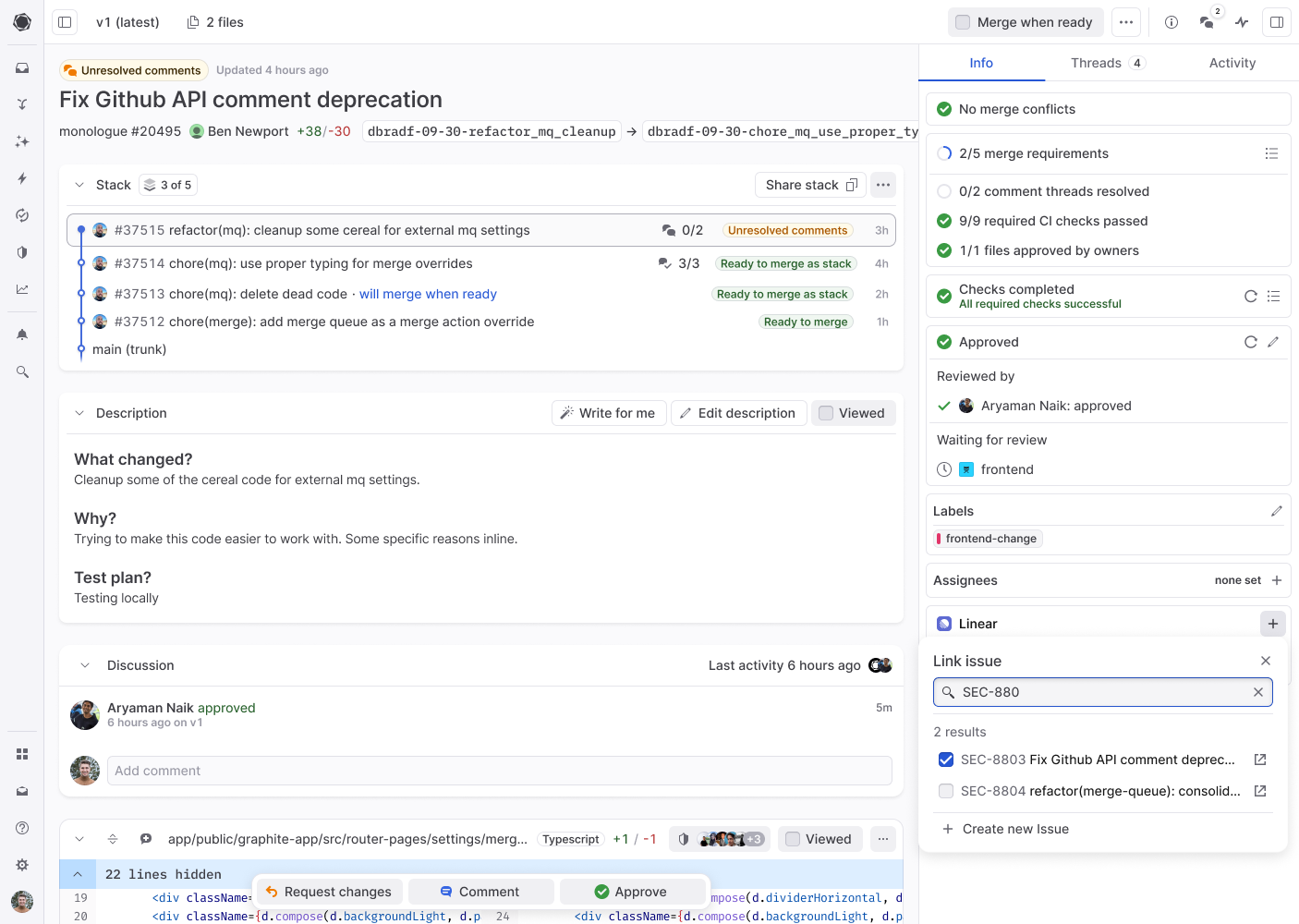 From here you can:
* Search for a Linear Issue by name
* \[OR] Paste a Linear Issue URL
### Creating a new Linear Issue from PR page
To create and link a new Linear Issue from the Pull Request page, you can click `Create new issue` in the issue tracker sidebar component.
From here you can:
* Search for a Linear Issue by name
* \[OR] Paste a Linear Issue URL
### Creating a new Linear Issue from PR page
To create and link a new Linear Issue from the Pull Request page, you can click `Create new issue` in the issue tracker sidebar component.
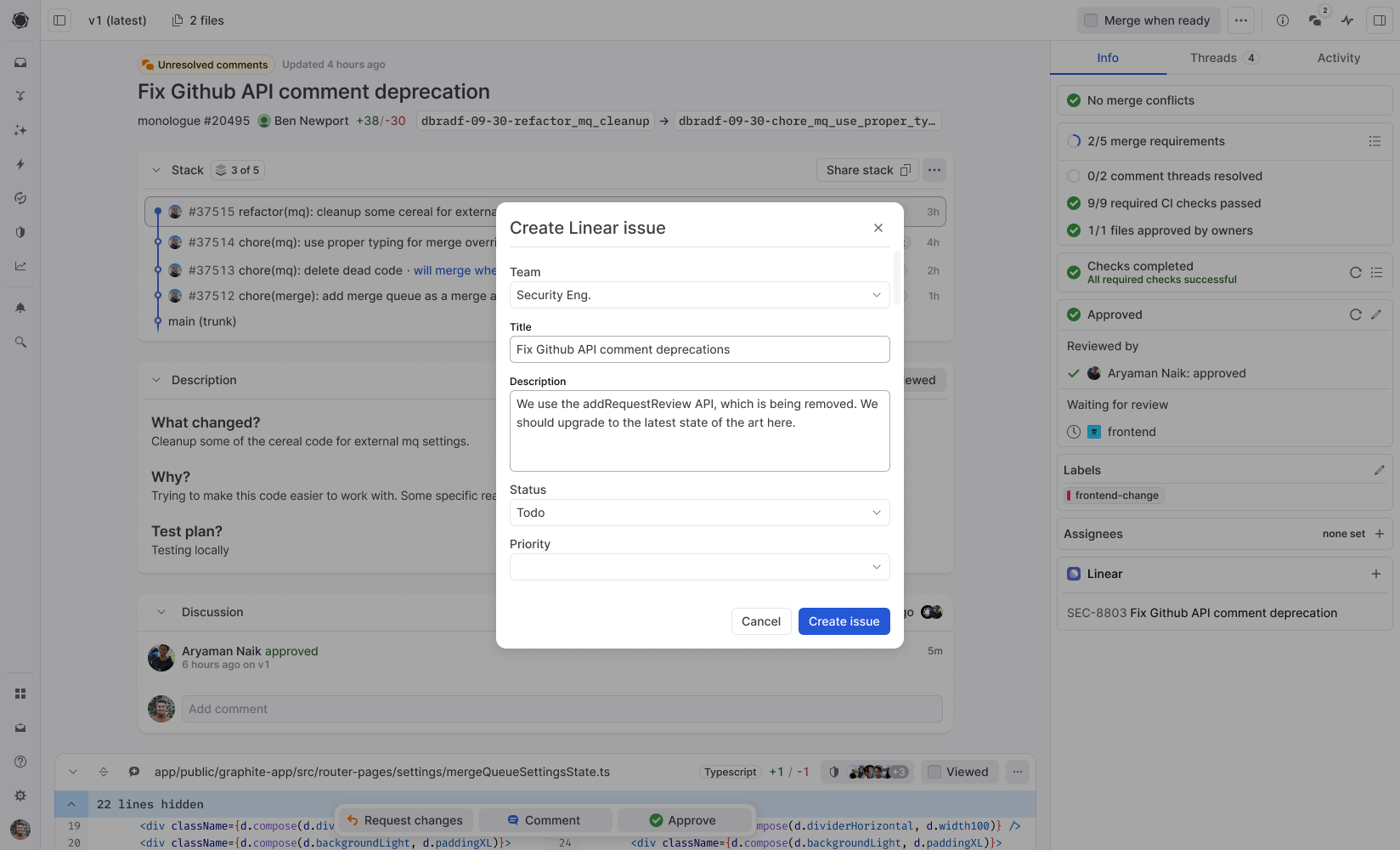 From here you can assign a *Team, Title, Description, Status, and Priority*. Once you click `Create issue`. The issue will be created in Linear, and will be linked to the current pull request.